
About this article
This article explains what a Large Language Model, or LLM, is and shows you some of the ways you can use it. LLMs are increasingly being used in workplaces — including in community and support settings — to assist with writing, planning, and communication. This article is written for people who are curious about AI tools and want to understand them without needing technical knowledge.
The article covers:
This page covers the same core information as our Introduction to LLMs video. Making information accessible matters to us, so we’ve shared this content in different formats.
Reading time: Approx 6-8 minutes.
Introduction to LLMs
(Large Language Models)


Introduction to LLMs
(Large Language Models)

What is an LLM?
LLM stands for Large Language Model. It is a type of AI that can talk, write, and sound like a human. You can type or speak to it just like you normally would and receive human-like responses.
There are many different LLMs available, including Copilot, Claude, Gemini, and ChatGPT. In this article, we’ll mainly use ChatGPT as our example. Many of these tools support multiple languages - some sign language features are in development, but are still limited.
You don’t need to be good at spelling or grammar to use these tools. You can give them bullet points or rough ideas, and they’re often good at turning that into something clearer or more polished.
The video below demonstrates one of the most well-known LLMs, ChatGPT, helping with ideas for a team meeting.
Note for screen reader users: This video is silent. A description is provided below. Some videos on this page open inside a YouTube player with several controls. If you become stuck inside the player, look for an option such as “Hide player control buttons” to collapse the controls and continue through the page.
Video description: Person types “Give me three ideas for fun ways to open a team meeting”. A second later ChatGPT says “Here are three openers that are genuinely fun and low-awkwardness / inclusive: 1. Two-word check in + tiny follow up, so it says everyone could share two words for how they’re arriving, and then as a follow up you could ask “what’s one thing that would make today’s meeting feel useful”, and on it goes
While LLMs can sound very human, they don’t actually understand meaning or context the way people do. They generate responses by predicting what words are likely to come next based on patterns in data — not by thinking or reasoning. That’s why your human judgement — deciding what to trust, what to change, and what to double-check — is one of the most important skills when using these tools. LLMs can be wrong, and they can sometimes “hallucinate,” meaning they confidently make things up.
Ways to use an LLM without typing
If typing isn’t always your thing, you’ll be pleased to know there are other options available. These include:
- the dictate function
- voice mode, and
- video mode
Dictate function
Many devices and apps include dictation (also known as speech-to-text). You can use this to talk instead of typing. You may have noticed a symbol that looks like a little microphone on your smartphone keyboard or your computer. For instance, the screenshot of Google below shows the dictation symbol on the right-hand side of the bar where you type.
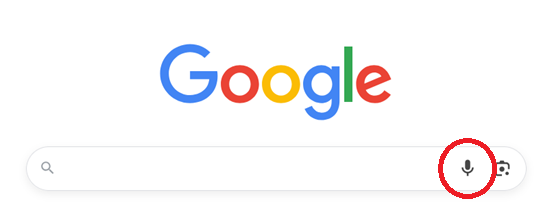
The idea is that you click or tap on the microphone symbol, then talk just like you normally would. AI technology sits in the background listening to what you say, then converts your spoken language into written text. The video below demonstrates Ollie using the dictate function to help write an email to his team:
Video description: Video shows Ollie talking on screen while a phone screen appears next to him, showing the dictation function.
Limitations of dictate and voice tools
Like all AI tools, voice and dictation features have limitations.
Speech differences: Dictation and voice tools can struggle with non-standard speech or heavy accents. We expect this to improve in the coming years.
Using te reo Māori and other languages: If you are speaking English and use the occasional te reo Māori word (or another language), the tool may assume you are still speaking English and try to transliterate that word into English. Some tools have an unfortunate tendency to translate Māori words into English swear words! Please remember to check the output before you use it.

Voice function
If you would like to have a spoken conversation with the AI tool, many tools have a free voice option. This is where you talk to the LLM just like you would talk to a human, and it responds with spoken answers that sound (mostly) natural.
Different LLMs have different symbols for the voice function. The image below shows what the icons for Claude, Gemini, CoPilot and ChatGPT look like.
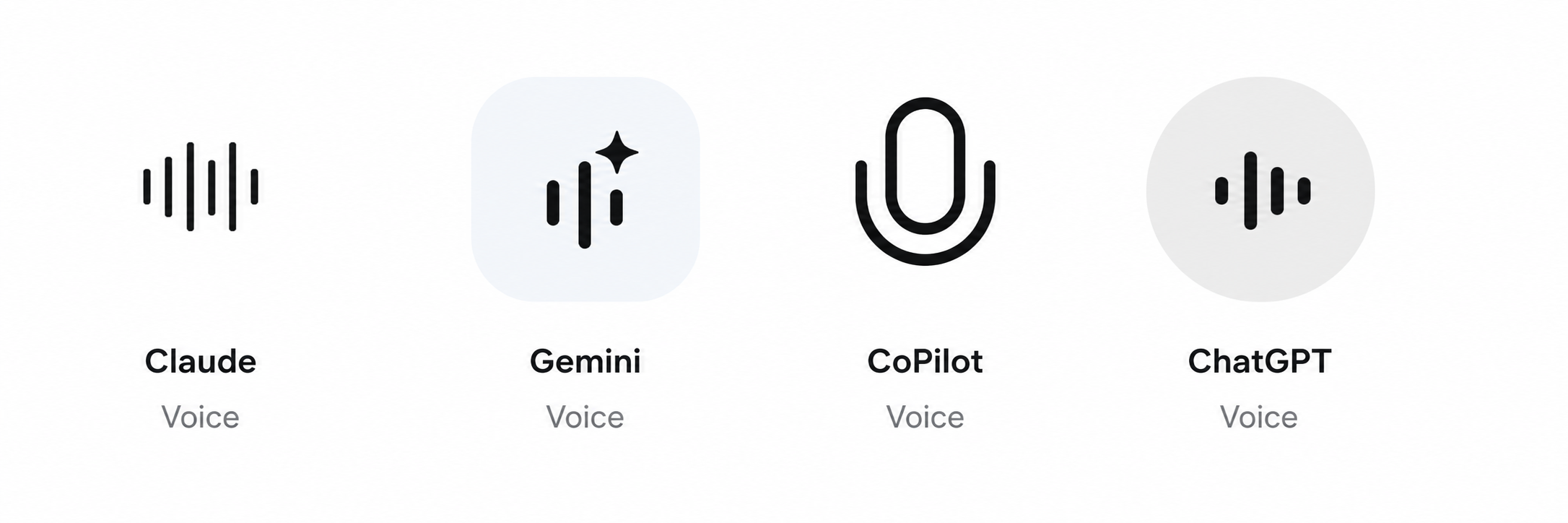
The video below shows Ollie demonstrating the ChatGPT voice function on his phone.
Video function
Some LLMs have video functionality on the paid plans. This works by giving the LLM tool access to your camera during a conversation, so the AI can see whatever is in your camera’s view. This can be really handy for people with vision impairments. In the video below, our vision-impaired colleague James is using ChatGPT video for the first time ever to read a menu at a cafe:
James was blown away by the video function of ChatGPT to assist him with reading a menu.
As with all camera-based tools, it’s important to think carefully about privacy and who or what is in view.

Image generation and review
Some LLM products include image generation. You can also access image-specific creation tools (such as MidJourney). Below are some images that we created using AI tools:
Photo realistic image generated by MidJourney

Cartoon image generated by ChatGPT
You can also upload your own images and talk to the LLM about them. This can be really handy if you want to produce Alt Text for a social media image, for instance (Alt Text is an image description for vision impaired people who use screen readers). You can also upload a photo of your fridge contents and ask for dinner inspiration ideas (my favourite use).
In the video below, Ollie shows ChatGPT what is inside his fridge and asks for dinner ideas. You can get similar suggestions by uploading a photo of your fridge or ingredients instead.
As with any images, it’s important to think about consent, dignity, and how disabled people are represented. Please check with people before you upload images of them into an AI tool.

One tool, many uses
Once you start using an LLM you will quickly see how useful it is. It’s great for helping with writing, including emails, reports, support plans, and funding applications. It’s also fantastic at proofreading. It can help you brainstorm ideas or provide constructive feedback on something you are working on. For instance, you can upload a strategic plan and ask it to review the plan and spot anything you might have missed out.
Use with care: LLMs are powerful, but not perfect
As useful as LLMs are, they do come with real risks — some of them serious.
If you haven’t already, we strongly recommend reading our article How to stay safe with AI or watching the accompanying video.
One of the most important things to remember is that AI tools can make mistakes. They can sound confident even when they are wrong.
As a rule of thumb:
If it involves your health or safety, check with a human expert.
If it involves money or legal issues, check with a human expert.
Don’t rely on AI alone
Avoid entering private or identifying information about yourself or other people (such as full names, addresses, health details, or anything from a support plan). If you need help with a document, remove identifying details first. We cover how to manage privacy risks in more detail in our article How to stay safe with AI and in the accompanying video.
Where to next?
This article is just an introduction. We’re developing a growing set of practical resources that go deeper into how LLMs can be used in everyday ways — especially in support and community contexts — and how to use AI safely, ethically, and effectively.
These will include:
How to use LLMs for writing support plans, reports, and funding applications
How to ask better questions (often called prompting) to get more useful results (coming soon)
Real-world examples of how disabled people and organisations are using AI
Clear guidance on safe, ethical, and accessible use
You don’t need to be “good with technology” to use these tools well. Curiosity, caution, and a willingness to double-check go a long way.
LLMs aren’t magic — but used thoughtfully, they can be powerful tools for saving time, reducing barriers, and increasing independence.
This article was written by our team, with support from AI. The ideas, analysis, and final decisions are our own. We reviewed the information carefully before publishing, because AI can make mistakes.
Continue learning
Explore these related guides to build your confidence using AI tools safely and effectively.


Stay Updated
More AI guides, videos, and practical resources are coming soon.

Supported by the Workforce Futures Fund |Tahua Rāngaimahi Anamata